
Setting a Static IP for the Server Machine
The router hands out addresses automatically, so the server machine can get a different one after a reboot — and the program looks “down” to staff while it runs. Two ways to pin it: a router reservation, or a manual Windows setup with screenshots.
Last updated: 2026-09-23
On this page
Why it matters
The program runs on the local network: one copy on the server machine, and staff machines open it at that machine's address. The router hands out addresses automatically (DHCP), so it may give the machine a different address after a reboot or a power cut — the saved link then opens nothing, and the program looks down while it is running: the server machine itself opens it fine.
A static address is a stated requirement, not an optional improvement.
Two ways — start with the better one
(a) A router reservation — the safer one
The router ties the machine's physical address (MAC) to a fixed IP and reserves it, so it never hands that address to another device. This is safer than the manual setup: the router knows the address is taken.
- Find the server machine's MAC: Command Prompt →
ipconfig /all→ Physical Address of the adapter in use. - Open the router page (often
192.168.1.1in a browser) with the admin credentials. - Look for DHCP Reservation, Address Reservation or Static DHCP — the name varies.
- Add a reservation: the MAC → the address you want → save → restart the server machine.
Router screens differ a great deal, so there are no screenshots for this path. If you can't find the option, ask your network administrator — it is a two-minute job for them.
(b) Manual setup in Windows
This is the path shown below, and it works when you don't have access to the router page.
⚠️ A wrong address or gateway cuts the machine off the network — no internet, and no access from staff machines. If that happens, return to the same window and choose Obtain an IP address automatically to restore it.
Before you start — know your network's values
Open Command Prompt (search for cmd) and run:
ipconfig
From the adapter in use, write down:
- IPv4 Address — the machine's current address
- Subnet Mask
- Default Gateway — the router
Then choose a static address outside the router's automatic range, so the router can't hand it to another device and cause a conflict — this page uses 192.168.1.50. If you don't know the range, ask your network administrator.
Step by step
The same path applies to Windows 10 and 11.
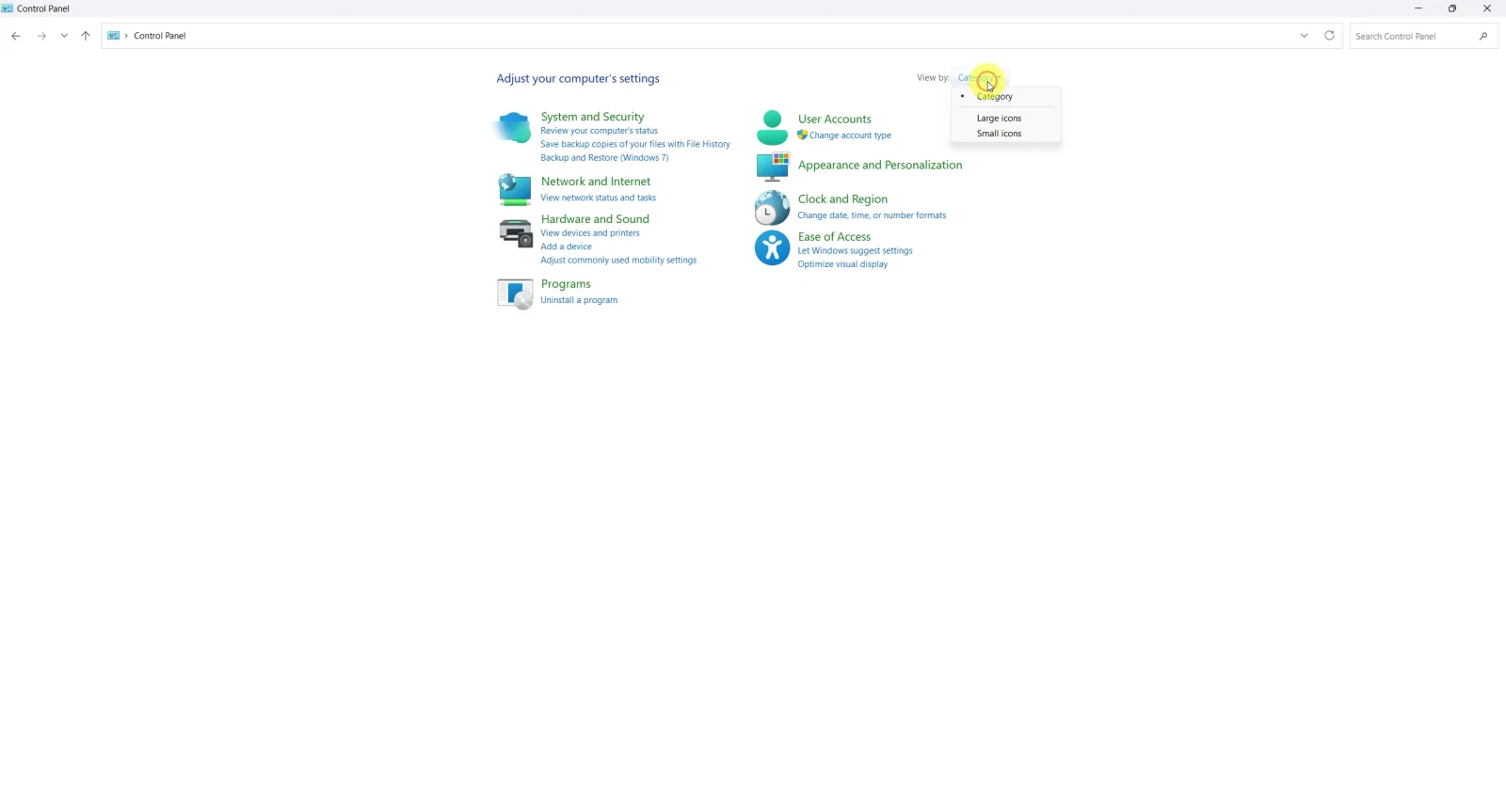
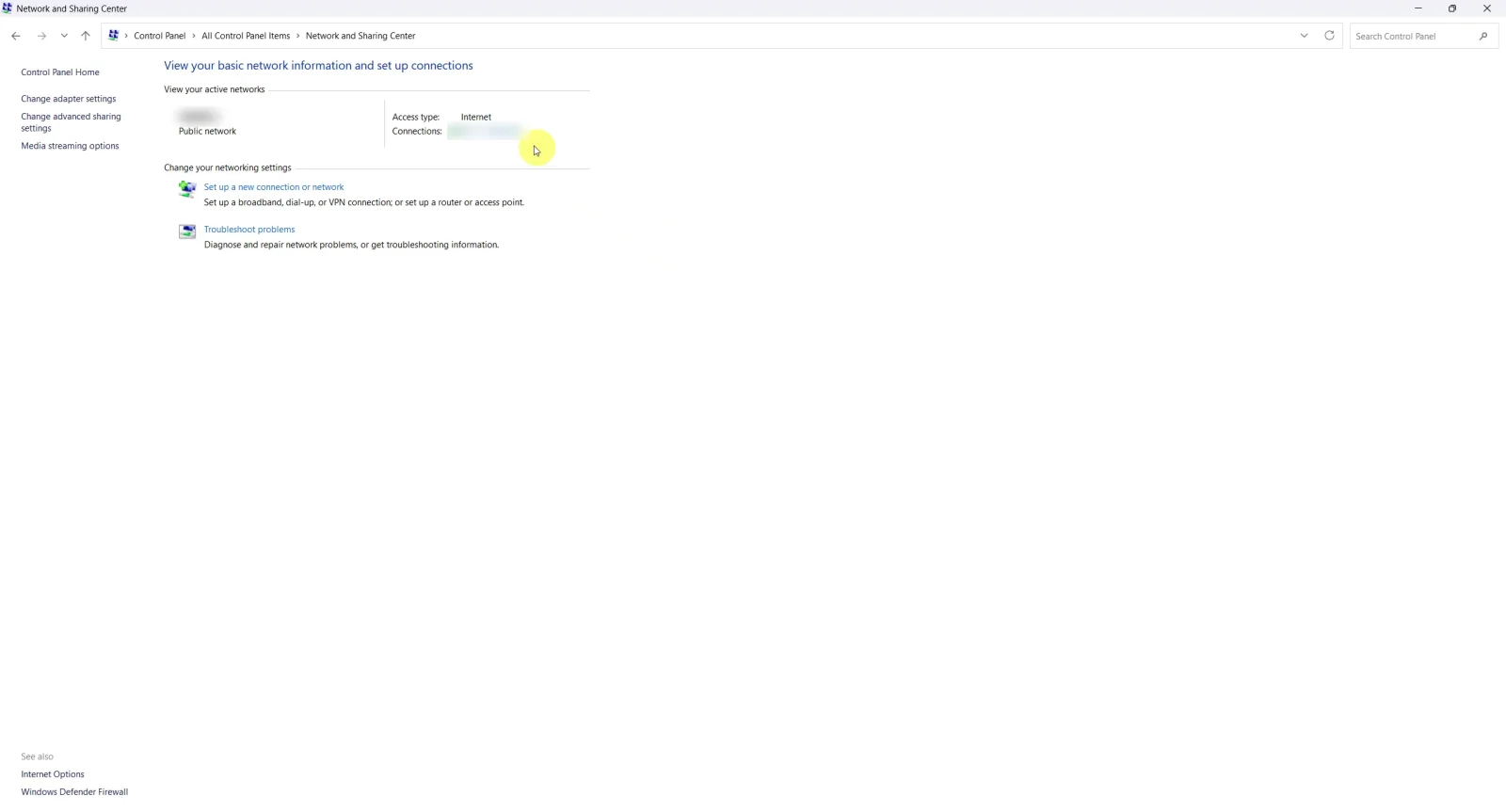
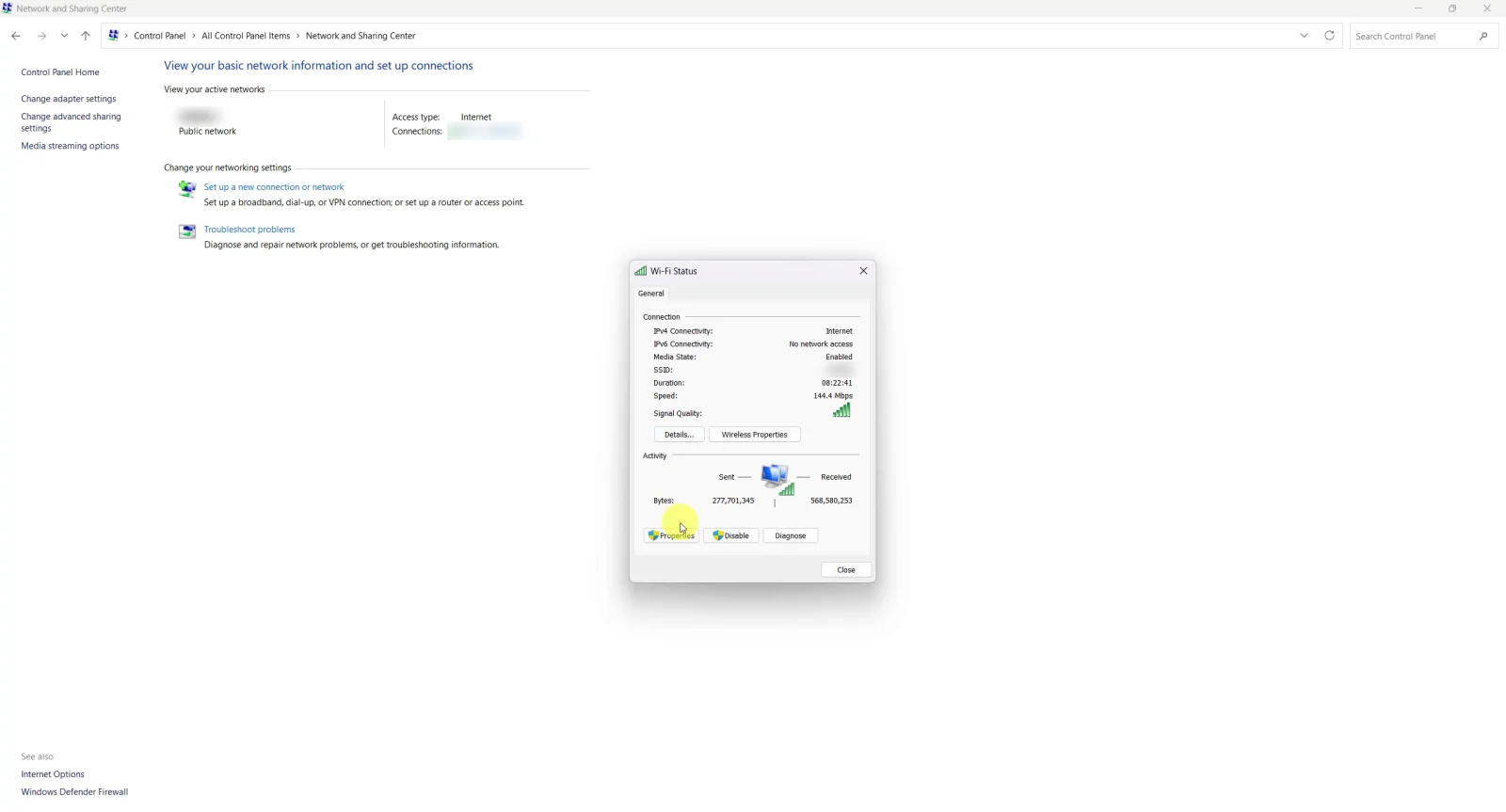
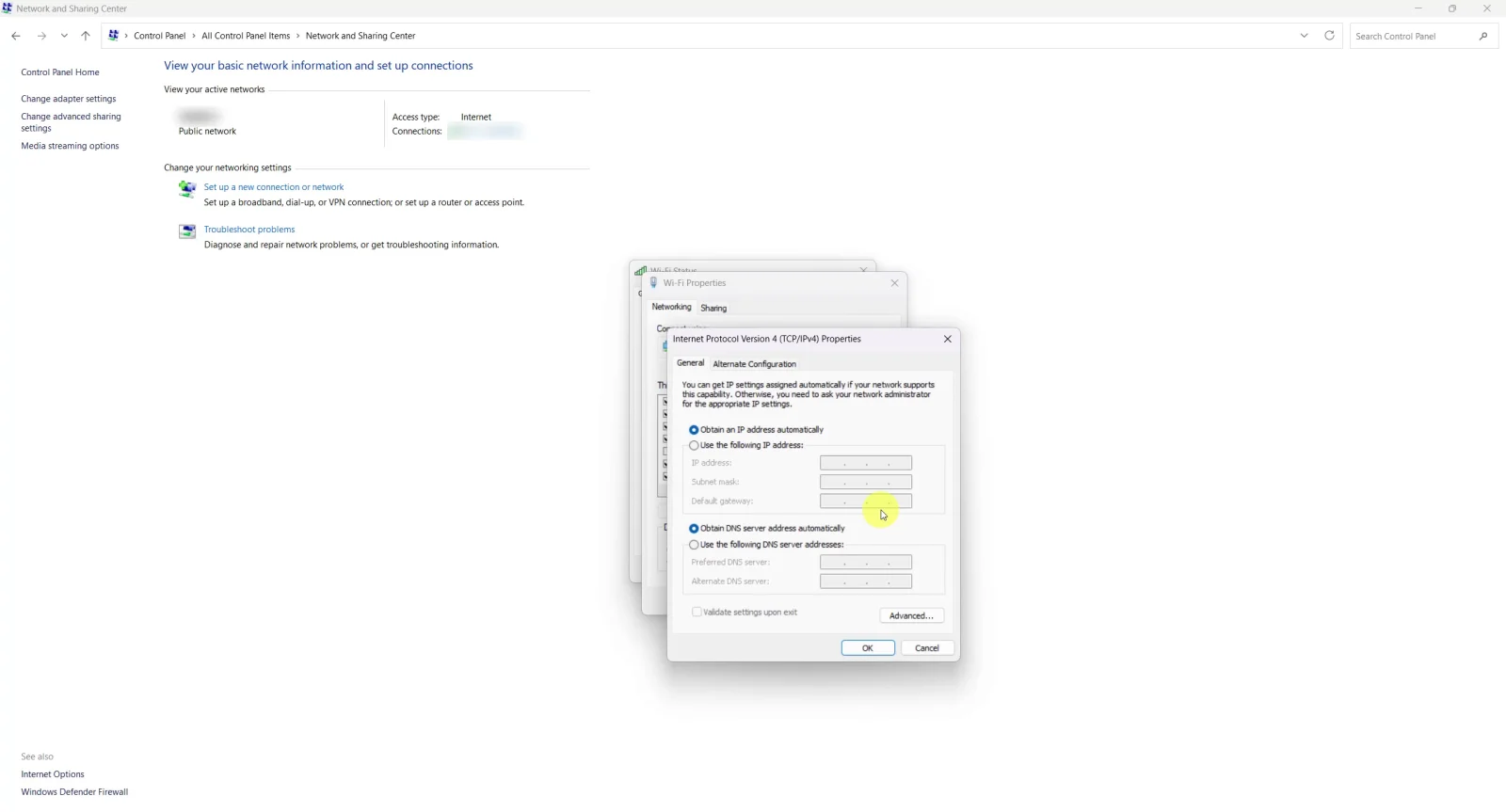
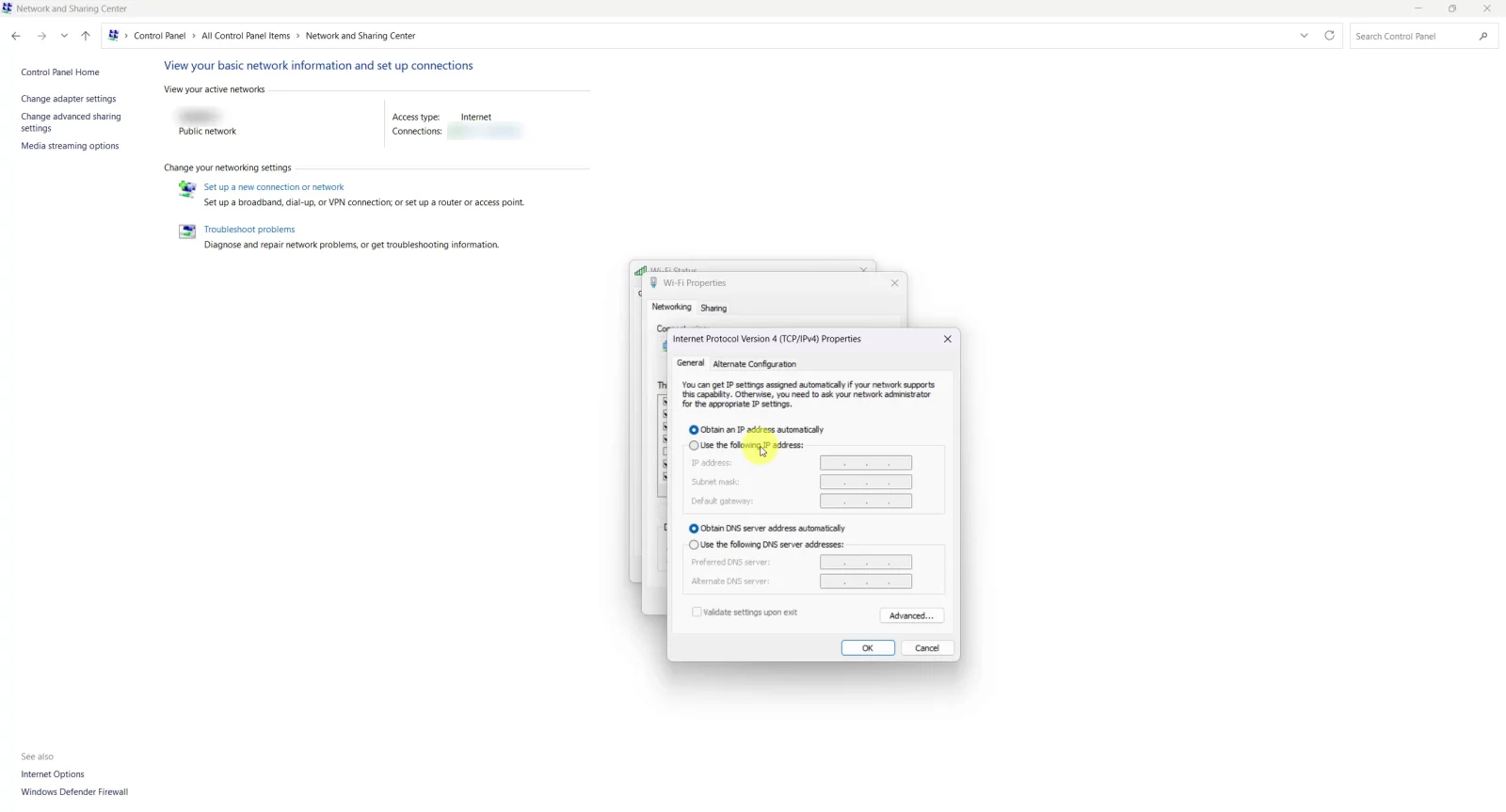
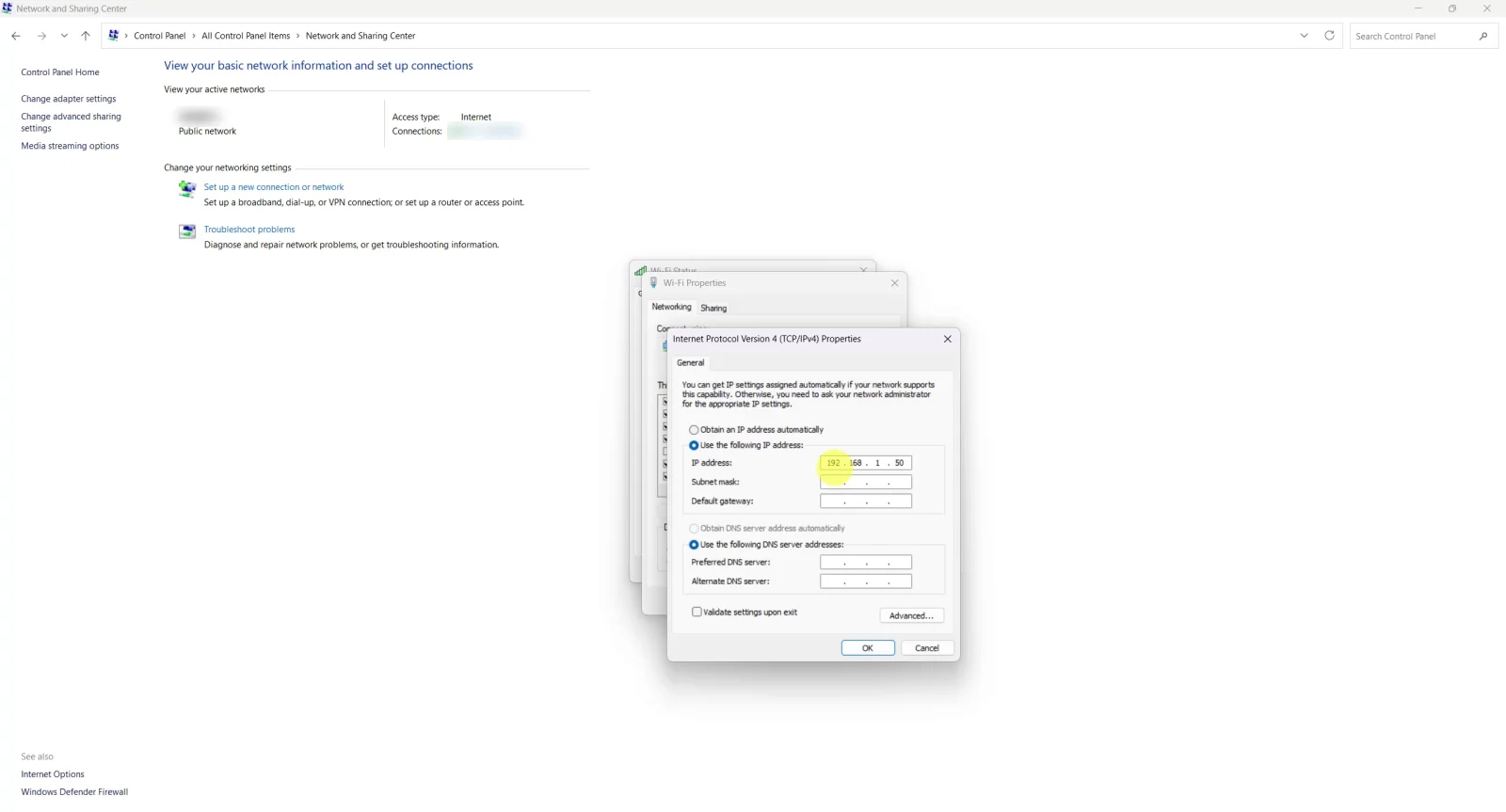
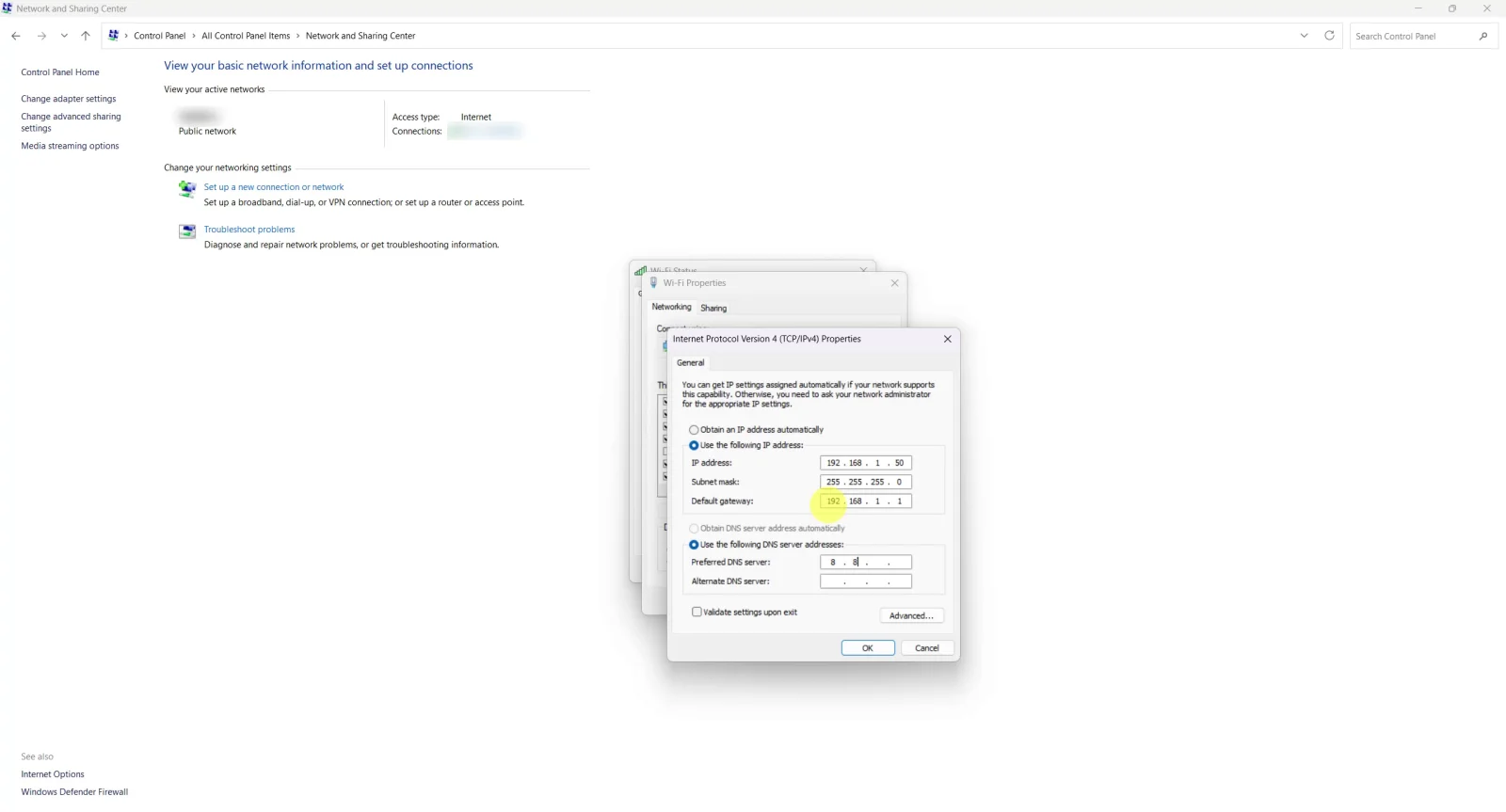
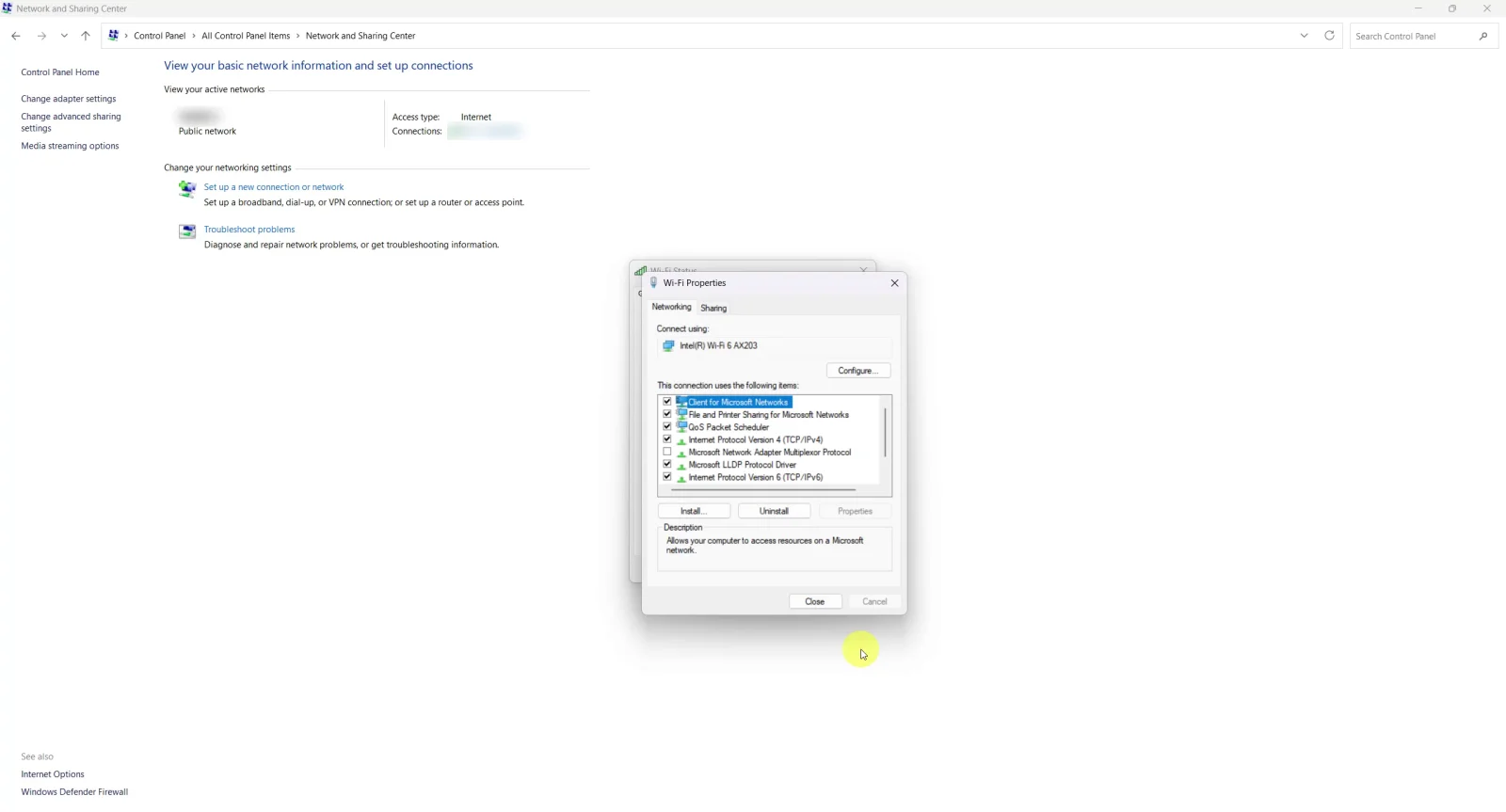
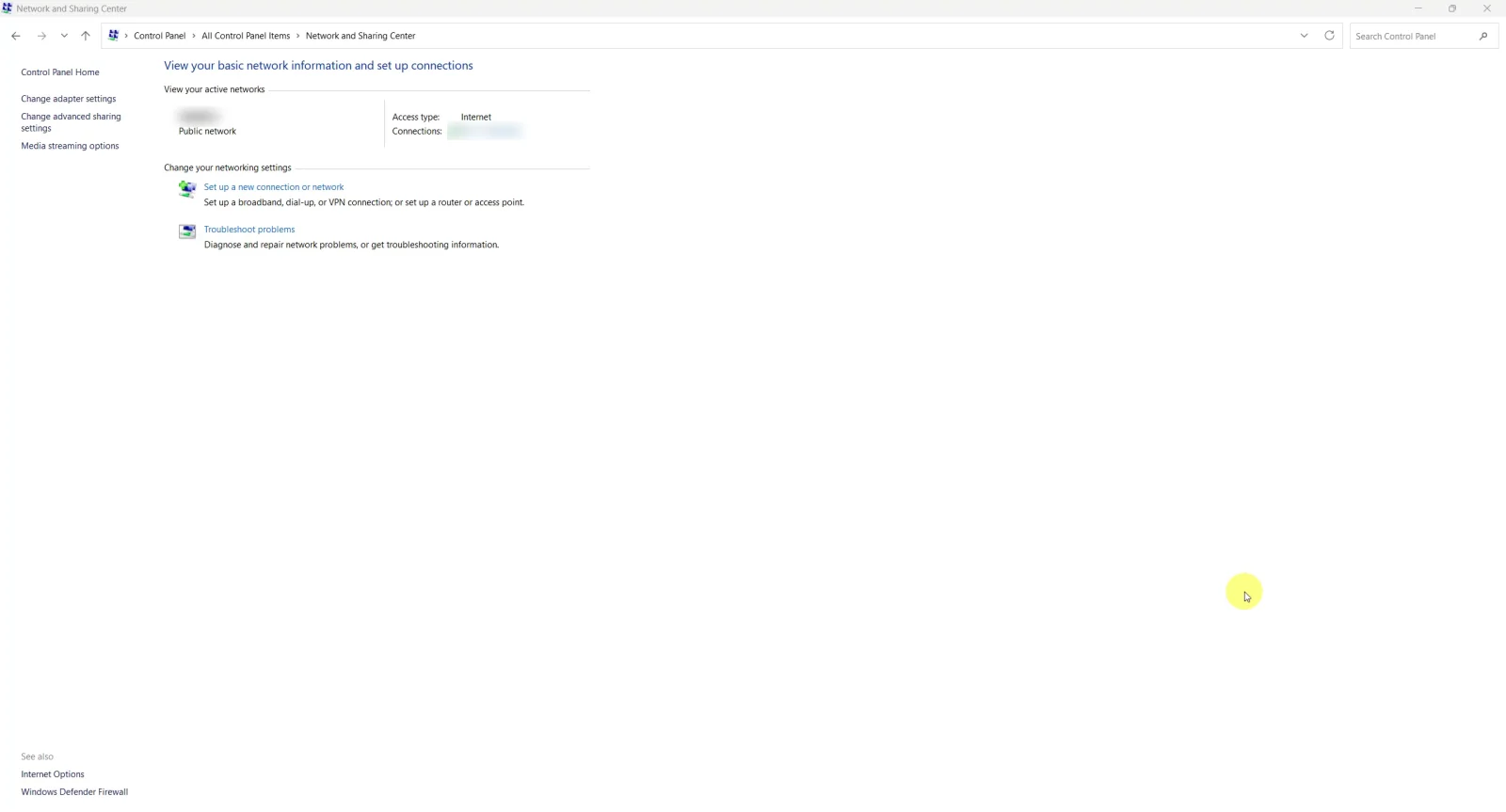
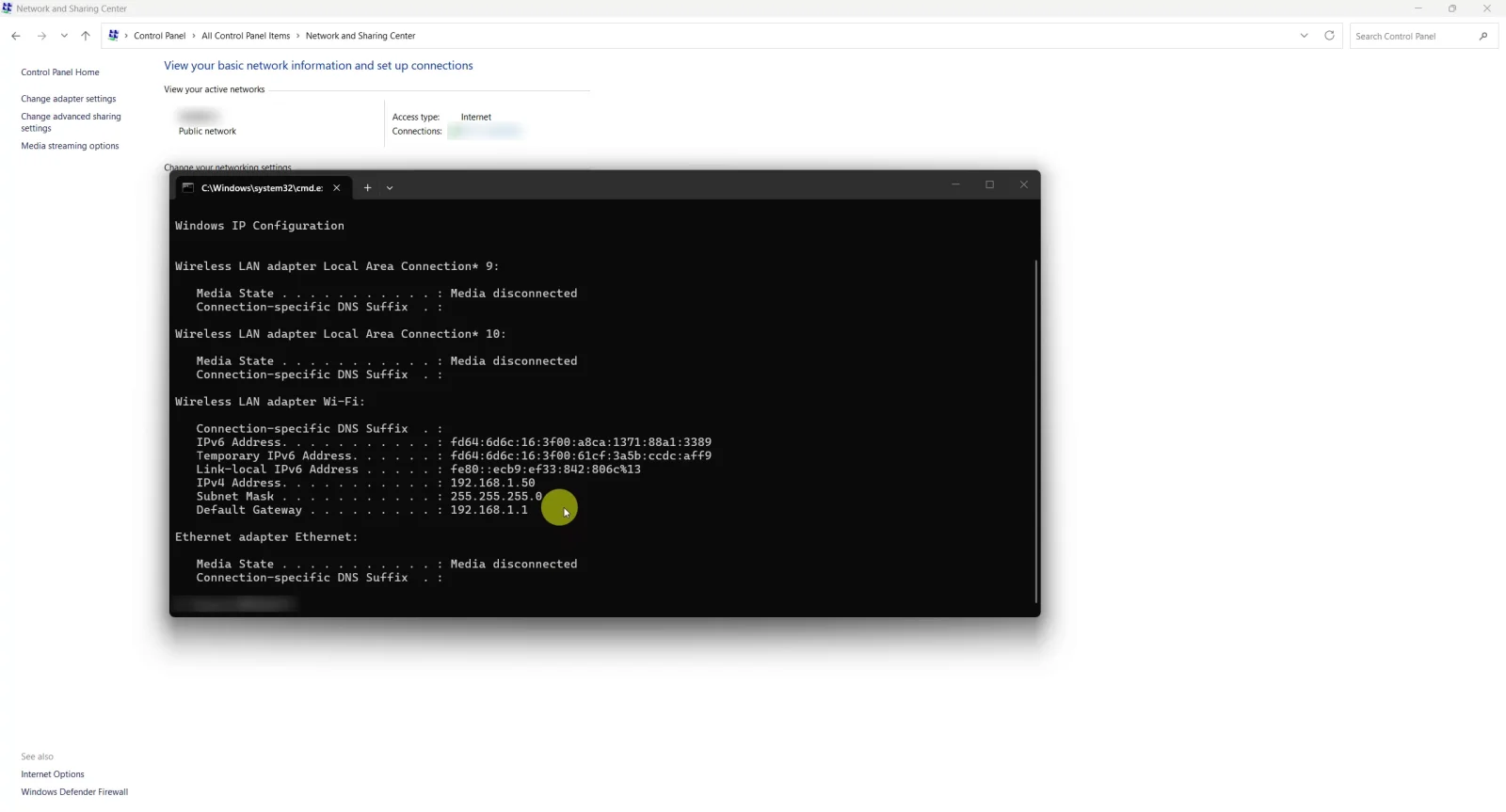
The values used in the screenshots
| Field | Value in the screenshots |
|---|---|
| IP address | 192.168.1.50 |
| Subnet mask | 255.255.255.0 |
| Default gateway | 192.168.1.1 |
These are example values — your own come from the ipconfig step above and may differ (192.168.0.x, for instance).
DNS servers: the screenshot carries Google's values (8.8.4.4 and 8.8.8.8), which work, but the simplest choice is usually the gateway itself (192.168.1.1) in the first box, letting the router resolve.
Two notes on the screenshots: the connection there is named Wi-Fi, and the server machine is better connected by cable (Ethernet) — the windows and steps are exactly the same, only the connection name changes. The network name is deliberately blurred.
Confirm it worked
| What to check | Where |
|---|---|
ipconfig shows the new address |
Screenshot 10 |
| Access type: Internet in the Network and Sharing Center | Screenshot 9 |
From a staff machine: open the address you pinned (this page's example: http://192.168.1.50) and the login screen appears |
No screenshot — test it on a staff machine |
If the address already changed and the program “stopped”
- Find the new address:
ipconfigon the server machine. - Update staff machines: the desktop shortcut or the address saved in the browser.
- Check any external integration that uses the address (another system calling the program).
- Pin the address using one of the two ways above so it doesn't happen again.
Common problems
| Symptom | Cause | Fix |
|---|---|---|
| The machine lost internet after the change | Wrong gateway or mask | Return to the same window → Obtain an IP address automatically, then redo the steps with the correct ipconfig values |
| An Address conflict message | The chosen address sits inside the automatic range, so the router gave it to another device · or another machine is pinned manually to the same address | Pick an address outside the DHCP range, or reserve it on the router (path a). Before pinning any address, run ping <address> from another machine — if it answers, the address is taken, so choose another |
| The program opens only on the server machine | The firewall blocks incoming connections on the program's port | Allow the port in Windows Defender Firewall on the server machine. The port differs between installations (the install team sets it): read it from the address itself — the number after the colon in http://<address>:<port>; no colon means the default port 80. ⚠️ Do not change the address or port yourself — the licence is bound to them and the program stops |
| The address keeps changing back | The change was made on a different adapter (Wi-Fi while the machine is on cable, or the reverse) | Repeat the steps on the adapter that ipconfig shows carrying the machine's address |
Did this page answer your question?
Thanks — your feedback helps us improve the guide.
Couldn't send — please try again shortly.